💬 Give feedback and coach your learner:
LOWER SCHOOL
Feedback is at the heart of the parent coach program.
YOU are the one who gets to support and challenge your learner through personalized support. Each week you should:
- Read your learner’s work
- Challenge them with specific feedback
- Make sure they revise it to done
- Provide 1:1, personalized support
📅 Looking for what your learner is working on this cycle, including answer keys and questions to ask your learning during 1:1s? That’s on What should my learner be doing? →
Tips & Best Practices
✍️ Give feedback that actually helps
Written comments, right in your learner’s Google Classroom task, are the standard. They create a record your learner can return to while revising, and show your coaching across the cycle. Verbal feedback in your weekly 1:1 is a great complement — alongside the written comments, not instead of them.
Move from generic to specific. “Looks great!” gives your learner nothing to act on. The goal is a comment that gets them to think a little deeper, make a connection, or try again — so point at something real in the work and use one of the four ways below.
- ❌ Instead of: “Looks great!”
- ✅ Try: “You picked a strong example here — what in the text made you choose it? Adding that ‘why’ would pull your reader right into your thinking.”
Four ways to respond — mix and match to what your learner needs:
- Encouraging — name what’s working, and why.
- Questioning — push their thinking without handing over the answer.
- Correcting — address a misunderstanding kindly, then point the way.
- Pushing deeper — challenge a learner who’s already met the bar.
Naming where the work lands on the rubric (Approaching Proficient, Proficient, Exceeding) can nudge a learner who’s coasting, but you don’t need it on every comment. Trust your read.
🤖 Trust your gut on AI. Journal writing should be in your learner’s own words, and as their coach you’re often the first to notice when something feels off. AI can be a real part of learning here, but using it to write journal responses doesn’t meet Prisma’s expectations — even when it’s been edited to sound like your learner.
If the writing doesn’t sound like them, start with a conversation, and loop in your PC Coordinator if you’re still concerned. Pangram offers free AI-detection scans for a second opinion, and you can read Prisma’s full AI use & academic honesty policy.
Go Deeper:
💬 Where to leave your feedback
Your learner’s work is always in Google Classroom (the Classwork tab) and your feedback goes inside the document itself. Two ways to get there:
Option 1 — Log in as your learner (easiest)
- Open Google Classroom from your learner’s account → Classwork → the assignment → open their Doc or Slides.
- Highlight the sentence or section, click the comment icon, and type your feedback right there.
- Heads up: comments will show under your learner’s name, since you’re in their account.
Option 2 — Have the doc shared to your email (more involved)
- Your learner opens the doc → Share → adds your email → you open it from your own account and comment as yourself.
- This needs a Google account on your end; if you don’t have one you’ll have to create it first, which is why most parents find Option 1 simpler.
🎙️ Typing every comment feels like a lot? Use Mote to leave voice comments instead: create a comment in the doc, then click the Mote icon and record. It shows up just like a typed comment.
Go Deeper:
✅ Get the work to “done”
A task is “done” after your learner has your feedback, made real revisions, and you agree it’s ready. You’re the one tracking their progress, so there’s nothing they have to “turn in” for Prisma.
📤 The “Turn In” button is optional. Prisma isn’t tracking submissions — you are. If your learner likes a tidy Google Classroom, they can turn a task in to clear it from their to-do list, but only after revisions are done and you’ve given the green light that it’s finished.
What “done” really means. Prisma is mastery-based, not percentage-based. “On track” is steady revision in response to feedback, not a perfect first try — consistent effort and real revision matter more than any single score.
📋 Track your learner’s work
As the parent coach, you are the one tracking your learner’s work, and you can use whatever system works best for you. The Weekly Progress Log is an optional tool and works for both lower and middle school. Feel free to edit and revise it as needed. Don’t forget to bookmark your copy for future use!
🔓 Help! My learner can’t edit their work
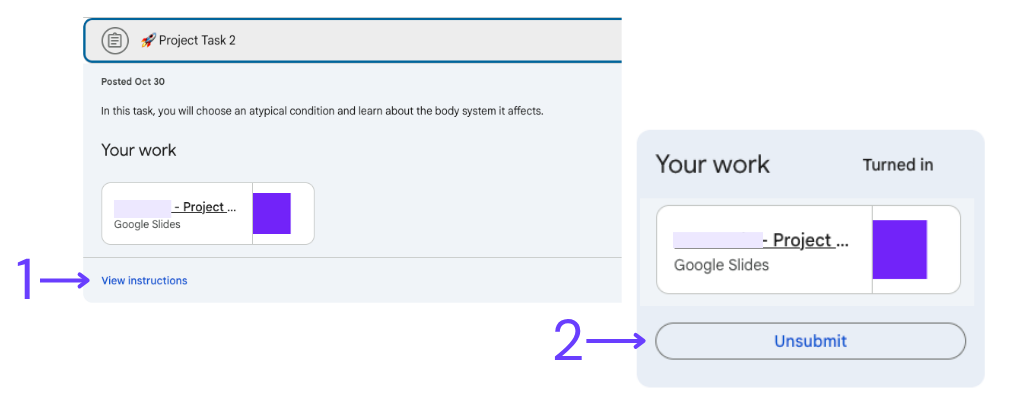
It’s most likely because they have turned in the task. That locks editing and hides comments.
Quick fix: in the Classwork tab, open the assignment, click the blue View instructions link, then click Unsubmit. Editing and the comments come right back.