
Whether you’re getting started for the first time or something isn’t working the way it should, you’re in the right place. Work through the sections below to find what you need — and if you still can’t solve it, the footer below will point you to the right person.
Google Classroom & Calendar Basics
Accepting calendar events
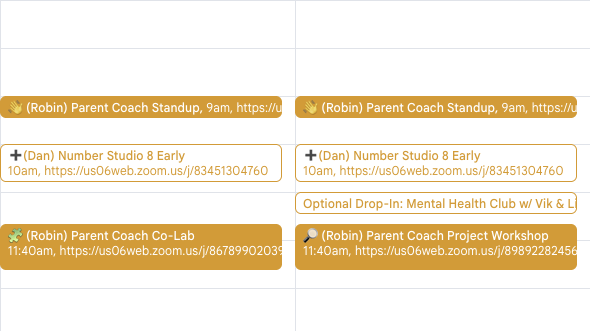
When your learner’s Prisma calendar first loads, events may appear in white. This means they haven’t been accepted yet. Click into each event and select ‘Yes’ to accept.
Finding Past Assignments
If you can’t find an assignment from a previous cycle, it may have been archived. You can find all of your learner’s past work in their Google Drive.
Session Recordings
Session recordings are not posted publicly, but you can request a link to missed sessions by reaching out to the appropriate facilitator.
Multiple Classrooms
Your learner has two Google Classrooms: one for Project and Literacy work, and one for math. Language classes and some enrichments will also have their own Google Classroom. Make sure you’re in the right one before looking for an assignment.
Accessing Your Learner’s Work
You have three options for accessing your learner’s Google Doc or Slides to give feedback. Use whichever works best for your family.
Option 1: Have your learner share the file
Your learner can share their Google Doc or Slides with you and add you as an Editor. Once added, you can open the file anytime and leave comments directly in the doc. This option works best for those with a google email address.
- Open the file
- Click the blue Share button
- Add your email and set yourself as Editor
- Click Send
Note: Google Classroom only accepts Prisma Gmail addresses for sharing. If your personal email doesn’t work, use Option 2.
Option 2: Log in as your learner
This is the easiest option. Sign into your learner’s Prisma Gmail account to access their work and leave comments or edits directly. This is a good option if sharing isn’t working.
Option 3: Sit together and review in real time
For some families, reviewing work together and talking through it live is the most natural approach. After your conversation, capture the key feedback as a written comment in the doc so your learner has something to return to when revising.
A note on notifications:
To receive an email when your learner tags you in a comment, make sure notifications are turned on. In Google Docs, go to Tools → Notification Settings and make sure notifications are enabled. Make sure you’re logged into YOUR Google account (not your learner’s) when you do this.
Quill Setup (Lower School only)
Quill is a grammar and writing practice tool your LS learner uses as part of their weekly Literacy tasks. As their Parent Coach, you need your own Quill account so you can assign activities and check their progress.
Step 1: Create your parent account
- Go to quill.org and click Sign Up
- Select “I’m a teacher” — this gives you the ability to create a class and assign activities
- Sign up with your personal email address
- Look for an option to join the Prisma school account — if prompted, accept it
Step 2: Create a class and add your learner
- From your Quill dashboard, click Create a Class
- Name it something simple like “[Learner’s name] — Prisma”
- Add your learner to the class using their Prisma Gmail address
- Your learner will receive an invitation — have them accept it before their first Literacy task
Step 3: Assign this cycle’s activities
Each cycle has specific Quill assignments that go with your learner’s Literacy tasks. Find this cycle’s activity list in the Current Cycle section of this site, then:
- In your Quill dashboard, go to your class and click Assign Activities
- Search for each assignment by name
- Assign it to your learner
Common Quill problems:
- My learner sees an empty class — this means they accepted the invitation but you haven’t assigned any activities yet. Go to your dashboard and assign this cycle’s activities (see Quill Activities section below).
- I can’t find the activity by name — try searching just the first few words. Quill’s search isn’t always exact.
- My learner sees two classes — one is yours (with activities) and one is the general Prisma class (empty). Tell them to use yours and ignore the other one.
Quill Activities (Lower School only)
Assigning the cycle’s activities
Below is a quick reminder of how to set up the above Activities. The full step-by-step Quill Activity Guide can be found here.
Build an Activity Pack:
- Sign in to Quill
- Open Assign Activities
- Search for each activity on the list and select it
- Assign the finished pack to your learner’s class.
Tip: Naming the pack by cycle (e.g., “Cycle 1”) keeps things easy to find later.
A few things worth knowing:
- Activities stay hidden from your learner until each one’s publish date, so don’t worry if they can’t see everything right away.
- Missed one? No problem! You can add or remove activities from a pack anytime under Manage Activities.
- Once assigned, the pack shows up in your learner’s Quill account automatically. There’s nothing to share by link, and it won’t go through Google Classroom.
Checking on progress
The Activity Summary Report is your best view of how your learner is doing — here’s how to use it. (Quill has other reports too, but Summary is the one you want; the others go deeper than you’ll need or are premium-only.)
Having issues? Email operations@joinprisma.org and the team will help.
Zearn Setup (for Parents coaching math)
If you are your learner’s math coach, you need a Zearn parent account to monitor their progress and adjust their lessons. The videos below will guide you through everything you need to know.
- 📹 Creating a Zearn Parent Account
- 📹 Setting Up a Class
- 📹 Adjusting Learner Lessons
- 📹 Digital Notes in Zearn
- 📹 Viewing Progress Reports in Zearn
- 📊 Feedback Overview & Guide
Note for Algebra 1 families: Your learner uses ALEKS instead of Zearn. Contact your PC Coordinator for setup help.
Common Tech Issues
Can’t share a Google Doc with my personal email
Google Classroom only accepts Prisma Gmail addresses for sharing. Use Option 2 (log in as your learner) to access their work instead, or sit together for real-time review.
Not receiving notifications when tagged in a comment
Make sure you’re logged into YOUR Google account in Chrome — not your learner’s Prisma account. Then go to Tools → Notification Settings in Google Docs and enable notifications.
Quill activities not showing up for my learner
You need to assign activities from your teacher dashboard before they appear in your learner’s account. See the Quill Setup section above.
Zoom link not working or not visible
Check your learner’s Google Calendar and make sure the event has been accepted (it should show in color, not white). Also check the Events tab in your learner’s Cohort Mighty space — Zoom links are posted there too.
Can’t find work from a previous cycle
Assignments may be archived after a cycle ends. Check with your learner’s Cohort Facilitator or reach out to Operations at operations@joinprisma.org.
Everything else
For any tech issue not covered here, contact the Prisma Operations team: operations@joinprisma.org